How SaveGuild works
Set up your server
Seven steps, in this order.
- 1
Make your account
Sign up with your email and confirm it. Then turn on two-factor authentication on your Account page: server owners need both, so nobody can take your members with just your password.
In the dashboard:Account
- 2
Connect Discord
Connect the Discord account that runs your server, so SaveGuild can see which servers you manage. It only reads your server list; you never sign in to SaveGuild with Discord.
In the dashboard:Connections
- 3
Add your server
Pick your server and install the bot. Keep every permission ticked: they're what let SaveGuild verify members, give roles and rebuild your server if it's damaged.
In the dashboard:Add a server
- 4
Lock the server until people verify
Make a role called Verified. In each channel's permissions, take View Channel away from @everyone and give it to Verified. Leave one channel, such as #verify, open to everyone. New members then see only that channel until they verify.
In Server Settings, Roles, drag the SaveGuild role above Verified. A bot can only give roles below its own.
- 5
Turn on verification
Switch verification on and choose Verified as the role members get when they verify.
In the dashboard:Your serverVerification
- 6
Post the verification message
Pick your #verify channel and post the message. Members press Verify there and approve SaveGuild without leaving Discord. You can change its wording, colour and button text.
In the dashboard:Your serverVerificationVerification message
- 7
Check your backups
Backups run on their own from the day you add the server: daily on Pro and Ultimate, weekly on Free (Ultimate can go every 6 hours). They save your roles, channels, settings and who had which role, so you can rebuild after a raid or a nuke. Take one by hand before big changes.
In the dashboard:Your serverBackups
Worth turning on too
Welcome message. New members get the Verify button privately, so they can't miss it.
Help for people who can't verify. Your own message and link, shown whenever someone gets stuck.
Raid and nuke protection. On by default. Anti-nuke needs the bot to have View Audit Log.
Permission alerts. On by default: your staff channel hears when someone gives out Administrator or other admin powers.
Manage Server for the bot. Lets it lock the server down, pause invites during a raid, and back up your AutoMod rules and onboarding.
What your members see
Verifying takes a few seconds and happens inside Discord.
- 1
They press Verify
In your #verify channel, or in the welcome message if you've turned it on.
- 2
SaveGuild explains, privately
A message only they can see names your server and says what verifying allows, in their own language.
- 3
They approve on Discord
Discord's own screen opens inside the app. It calls the permission “Join servers for you”: that's what lets you bring them back.
- 4
They're in
They get your Verified role straight away, and they're on your list if you ever need to bring them back.
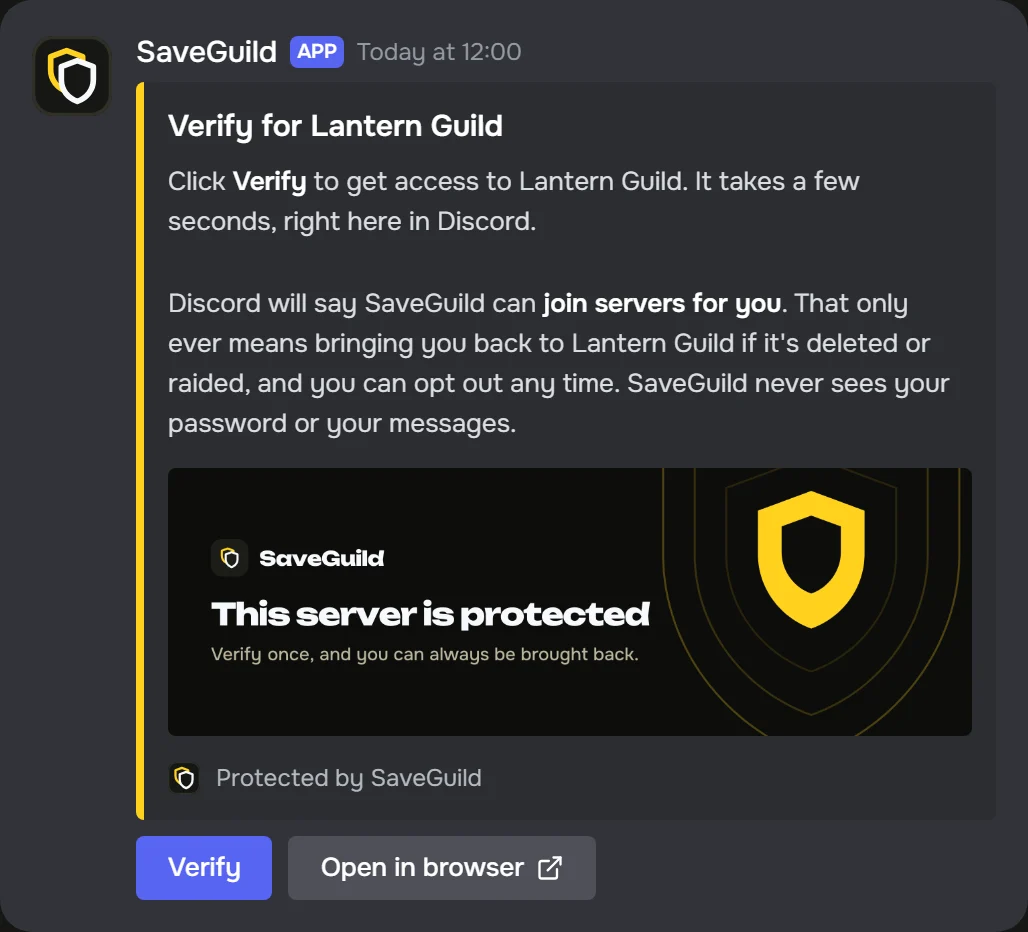
Whenever you bring someone back, they get a message saying so, with a one-click way to opt out. SaveGuild never sees their password or their messages.
When something goes wrong
Find what happened, and press the button it points to.
A raid is under way, or someone's account was taken over
Lock the server down: new invites and DMs between members are paused for 1, 6 or 24 hours, so nobody new gets in and nobody can message everyone. Discord lifts it on its own when the time is up, or lift it sooner yourself.
In the dashboard:Your serverProtection
Members were kicked, banned or left
Pull them back: everyone who verified and isn't in the server is added again, and each gets a message saying so. To pick people one at a time, use Add back on the Members page.
In the dashboard:Your serverRestore
Lots of accounts joined at once
Raid mode starts on its own: you and your staff channel are told, and welcome messages pause until it's calm. On Pro and Ultimate it can also raise Discord's verification level for the length of the raid. Ban the raiders in Discord, and end raid mode early if you like.
In the dashboard:Your serverProtection
Someone nuked the server
SaveGuild notices when someone deletes channels or roles, or bans people, faster than your limits, and tells you straight away. Press Undo to rebuild what was deleted from your last backup, give members their roles back and unban everyone they banned.
In the dashboard:Your serverProtection
Channels or roles were changed or deleted
Open your latest backup and press "What's changed since this backup" to see exactly what changed. Restoring shows a preview of what it will do before anything happens; only what you tick is rebuilt, and nothing that's still there is deleted.
In the dashboard:Your serverBackups
The server was deleted, or you lost it
Pick a replacement server you own, add the bot there, and move your members into it. Only the server's owner in SaveGuild can do this.
In the dashboard:Your serverRestore
Stopping spam
SaveGuild never reads messages, so it can't stop spam. Discord's own AutoMod can, for free. Set it up once, in this order.
- 1
Open AutoMod
In Discord, open Server Settings, then Safety Setup, then AutoMod. If it isn't there, turn on Community in Server Settings first.
- 2
Block mention spam
Turn on the mention spam rule and set a limit, around 5 to 10 mentions in one message. Raiders ping everyone at once; real members don't.
- 3
Block suspected spam
Turn on the suspected spam content rule. Discord recognises common scam and spam messages and stops them before anyone sees them.
- 4
Add your own words
Turn on the commonly flagged words lists you want, and add a custom rule for what your server gets: other servers' invite links, "free nitro" scams, names of raid groups.
- 5
Send alerts to your staff
For each rule, choose to send an alert to your staff channel (the same one SaveGuild posts raid alerts in), and exempt your staff roles so moderators aren't blocked.
They work together: AutoMod stops spam messages, SaveGuild's raid mode spots a flood of joins, pauses welcome messages and can raise your verification level.
Good to know
Who can I bring back?
What does “Join servers for you” on Discord's screen mean?
What can my moderators do?
What's the health score on my overview?
What if someone can't verify?
Can members leave SaveGuild?
Can I use my own bot?
What permissions does the bot need?
Stuck? Ask in our support server.